WPS Office Error Waiting for Printer Connection When Open File – WPS Office is a popular document application that is compatible with Microsoft Office files. It includes Writer, Presentation, Spreadsheet (I think the abbreviation WPS comes from this), and later support for PDF files.
Recently, I got a report from one of my users that WPS keeps showing the error “Please wait for printer connection or cancel connection” when trying to open files.
This problem is caused by bugs that keep WPS Office stalling while trying to connect to an offline or network printer. This error only happens when you try to open a file, for other operation like create file, this error won’t occurs.
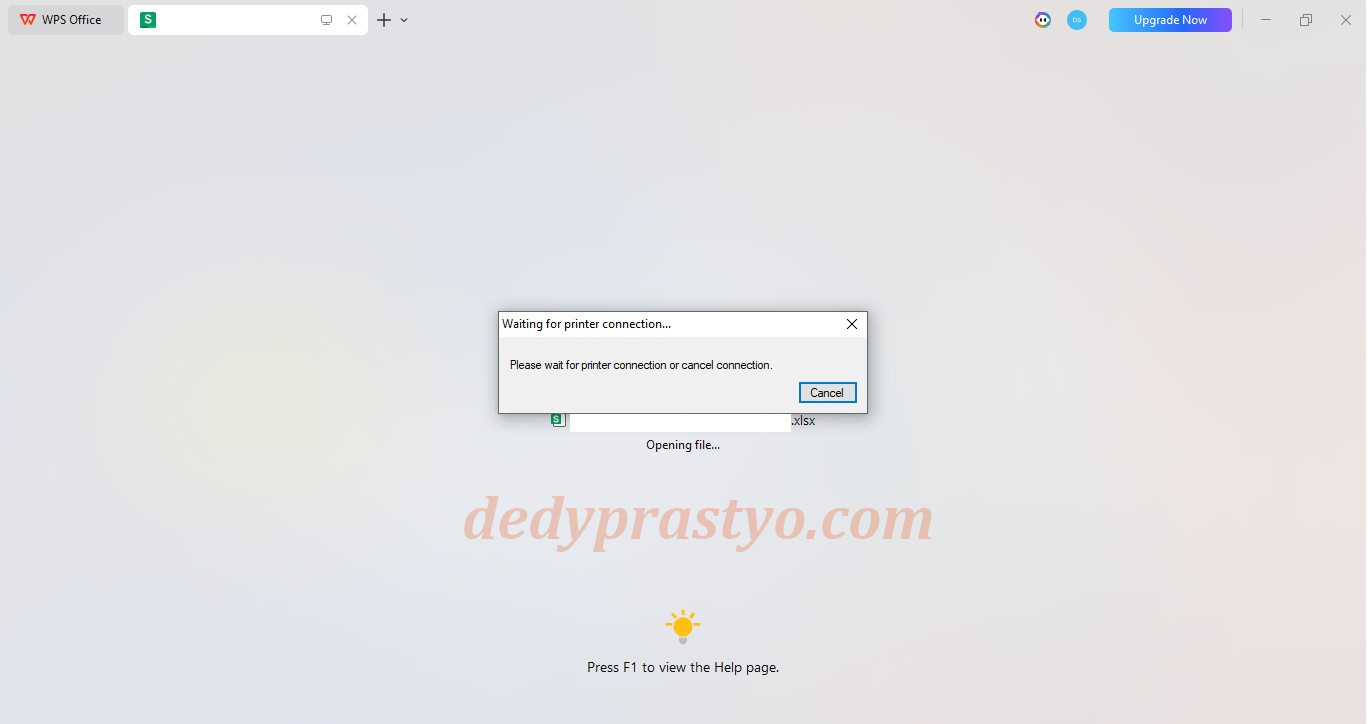
To fix the “Please wait for printer connection or cancel connection” error when opening files in WPS Office, set a virtual printer (such as Microsoft Print to PDF) as your default printer in Windows. This prevents WPS from stalling while trying to connect to an offline or network printer during startup.
- Open Control Panel -> Hardware and Sound -> Devices and Printers.
- Right-click Microsoft Print to PDF (or whatever virtual printer you have) and choose Set as default printer.
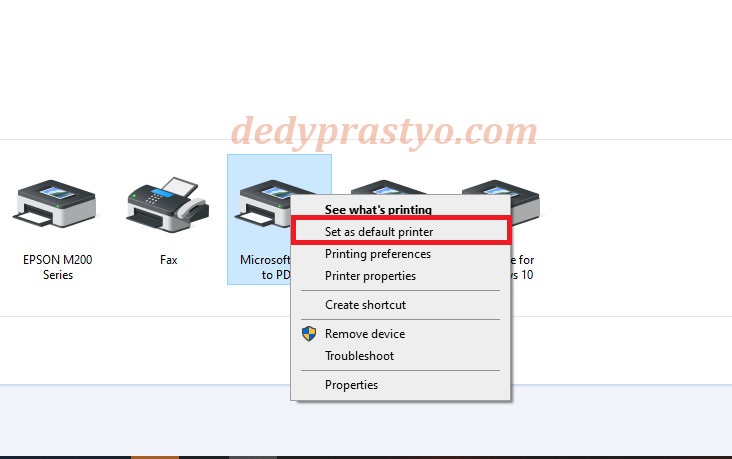
Set virtual printer as default printer. - Windows will show notification “Setting this printer as default means Windows will stop managing your default printer”, choose OK.
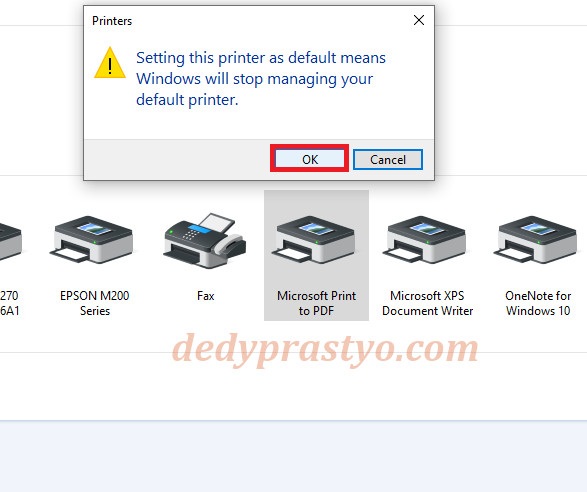
If this notification appears, just click OK. - Verify by checking the printer icon. If a green check mark appears on your virtual printer (in this case, Microsoft Print to PDF), you’ve successfully set it as the default printer.
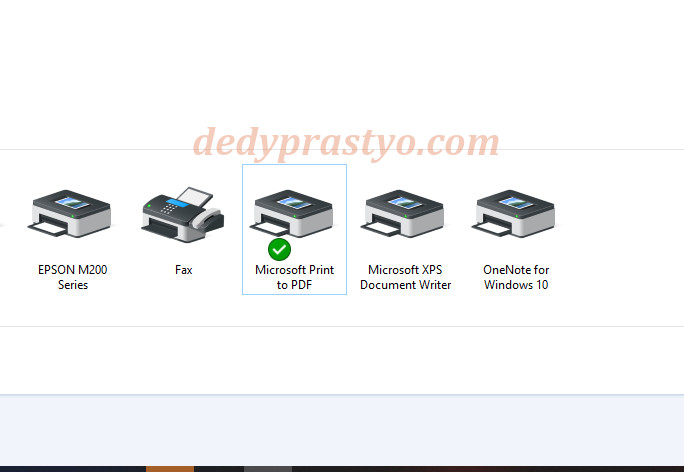
Make sure the green checkmark appears on your virtual printer.
You might try to restart your computer / laptop before open file using WPS Office again (sometimes you need to restart, sometimes not).
Enjoy WPS Office troubleshooting and stay awesome.